Guide

Tips for training with PaceIQ

A few things worth knowing before and during your workouts. Most of them are not written anywhere else in the app.

What PaceIQ records while you train

During a workout PaceIQ records your pace, distance, heart rate, cadence and changes in elevation, and it checks the weather where you are when your warm-up ends and every 20 minutes after that. Afterwards it turns all of this into the analysis you see on the Last Workout and History screens.

1Before your first workout

Complete the first-launch setup

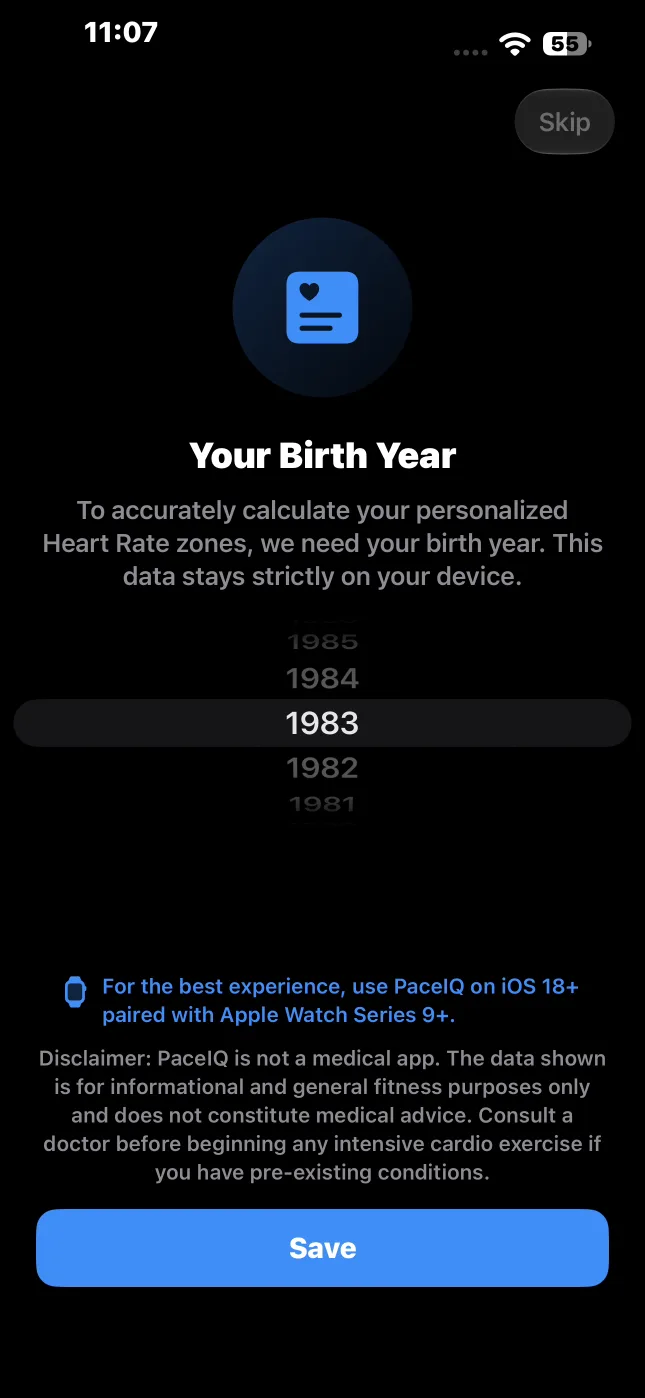
The first time you open PaceIQ, it asks for access to Apple Health and for your birth year. Allow access and enter your birth year. Your age sets your heart-rate zones and your effort ceiling, and Health access lets PaceIQ use your own resting heart rate and weight, so every analysis is calculated for you personally.
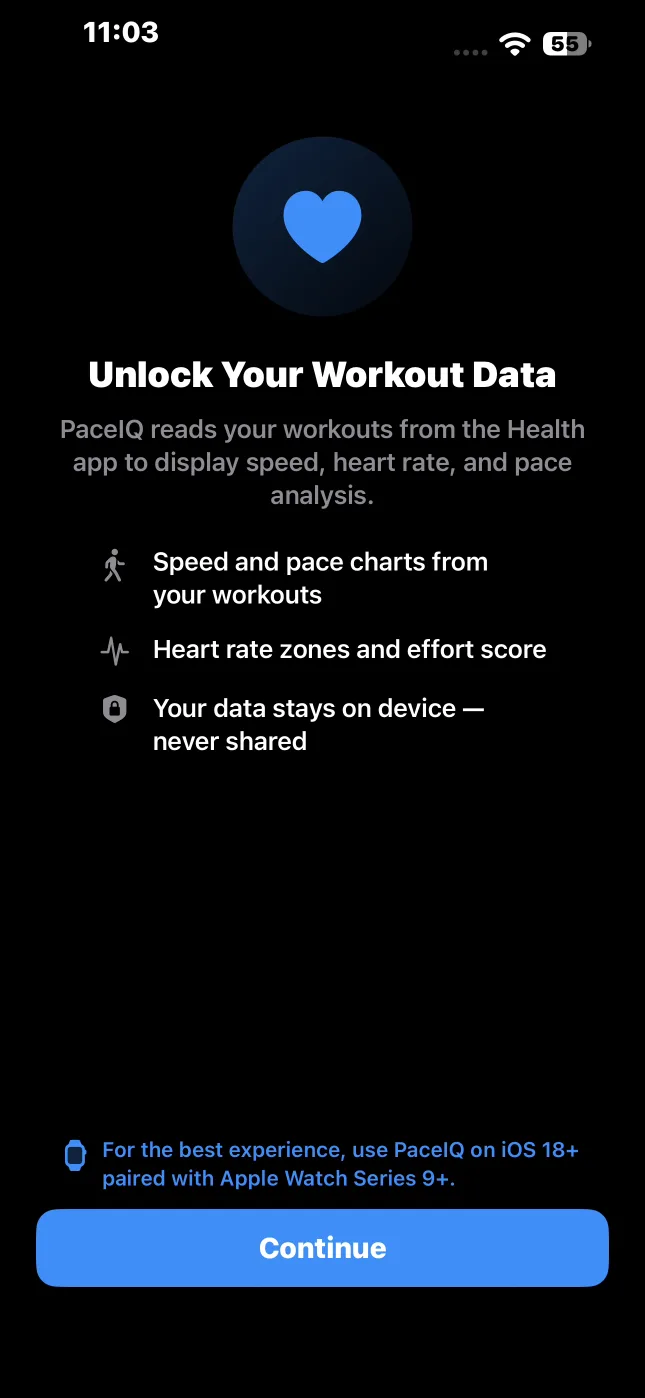
PaceIQ first-launch screen: Unlock Your Workout Data, with a Continue button
Health access, first launch
PaceIQ first-launch screen: Your Birth Year picker with a Save button
Your birth year

Keep your details in the Health app up to date

PaceIQ never asks you to type in your weight or sex. It reads them from the Health app, and your resting heart rate comes from your Apple Watch. If these details are missing or out of date in Health, the analysis that depends on them is less personal.

Share all your recorded Health data

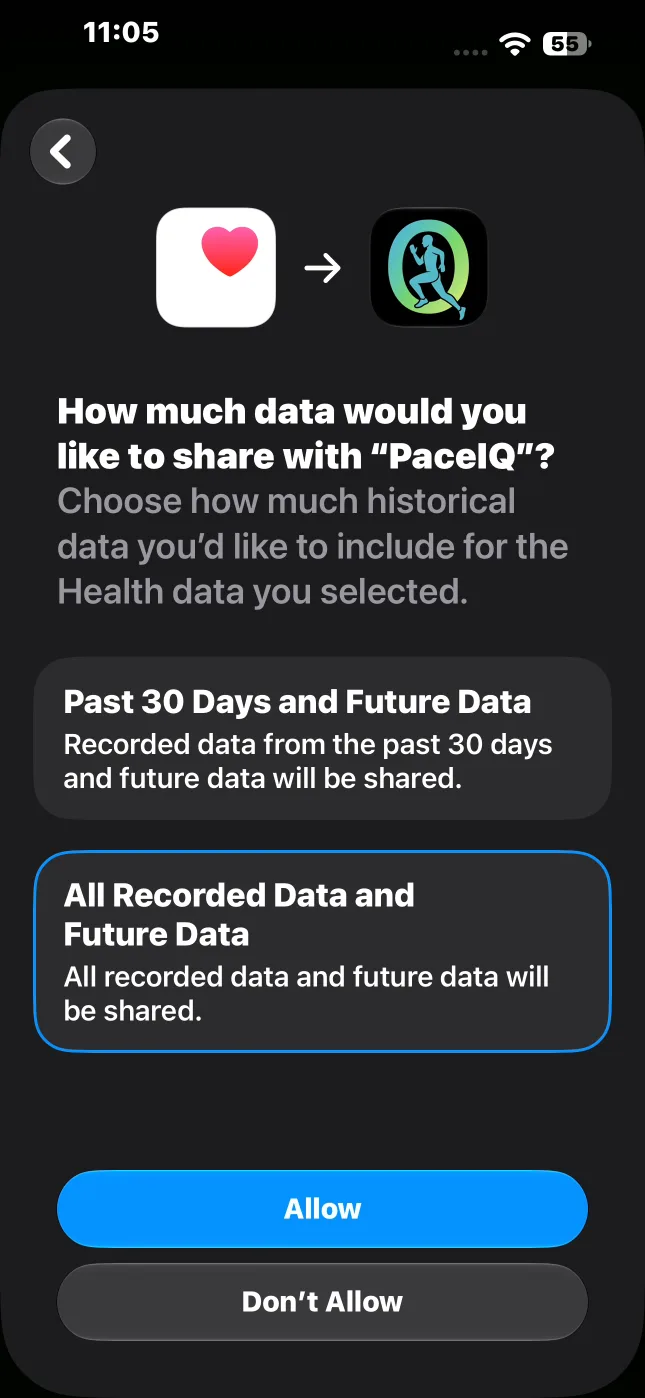
On iOS 27, right after you choose which Health data PaceIQ may read, iOS asks a second question: How much data would you like to share with PaceIQ? Choose All Recorded Data and Future Data rather than Past 30 Days and Future Data. PaceIQ uses the most recent weight in Health; if you last recorded it more than 30 days ago, the 30-day choice hides it and the analysis uses a general value instead of yours.

iOS question: How much data would you like to share with PaceIQ? Past 30 Days and Future Data, or All Recorded Data and Future Data
Choose All Recorded Data

Allow Health, Motion & Fitness and Location when you start your first workout

This applies on both the Apple Watch and the iPhone.

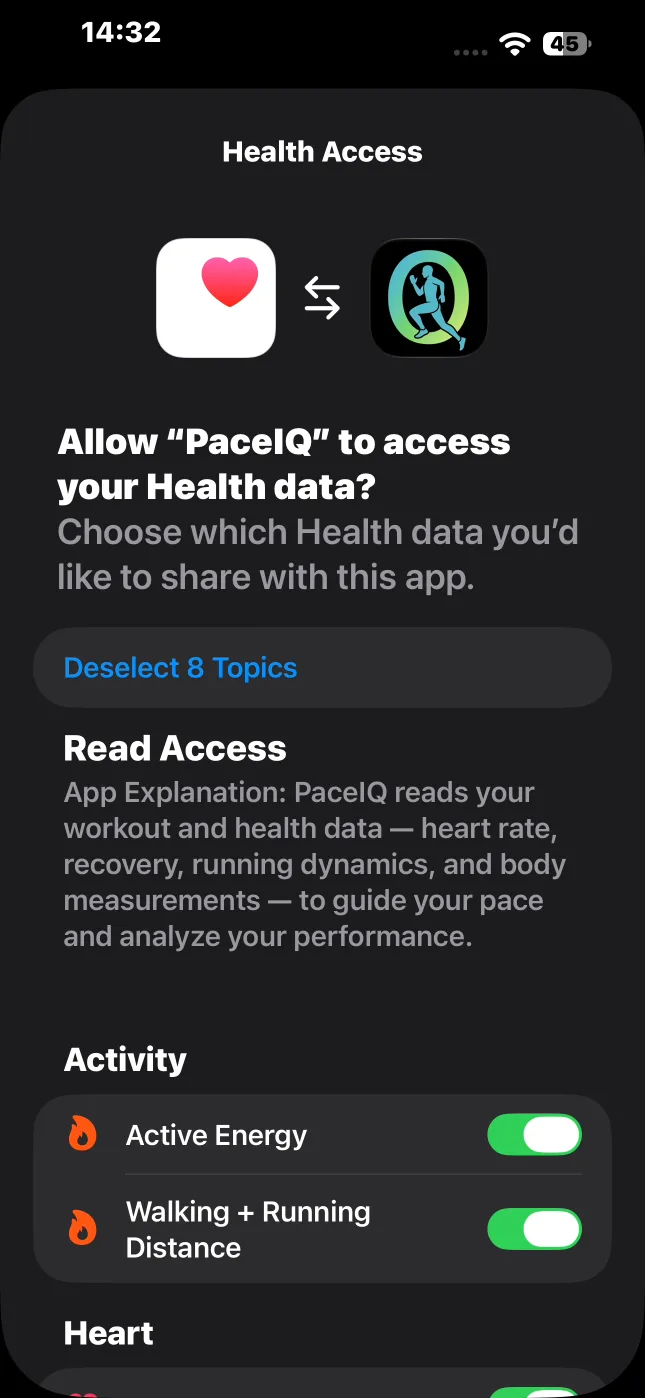
  • Health: allow PaceIQ both to read and to write. Without it, PaceIQ cannot read the sensors during the workout or save the result to the Health app.
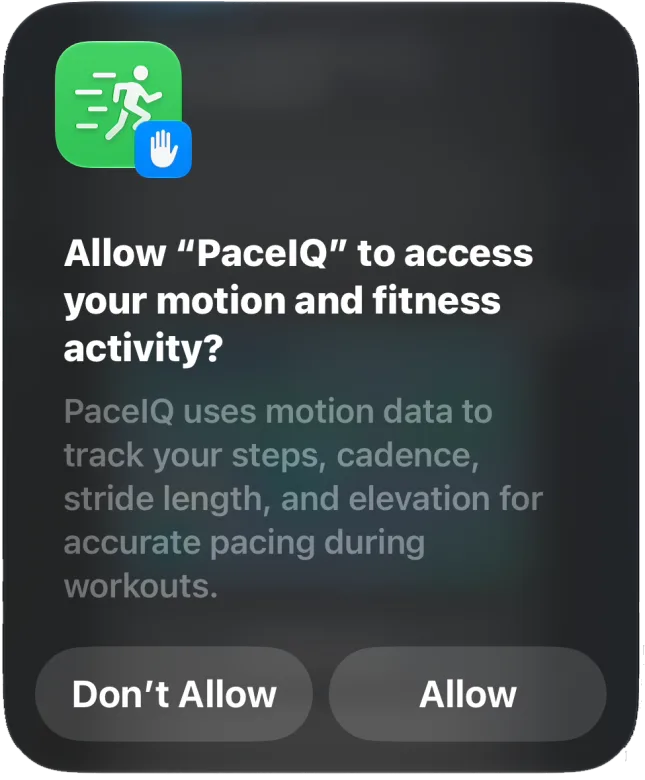
  • Motion & Fitness: allow it. PaceIQ uses motion data to track your steps, cadence, stride length and elevation during workouts.
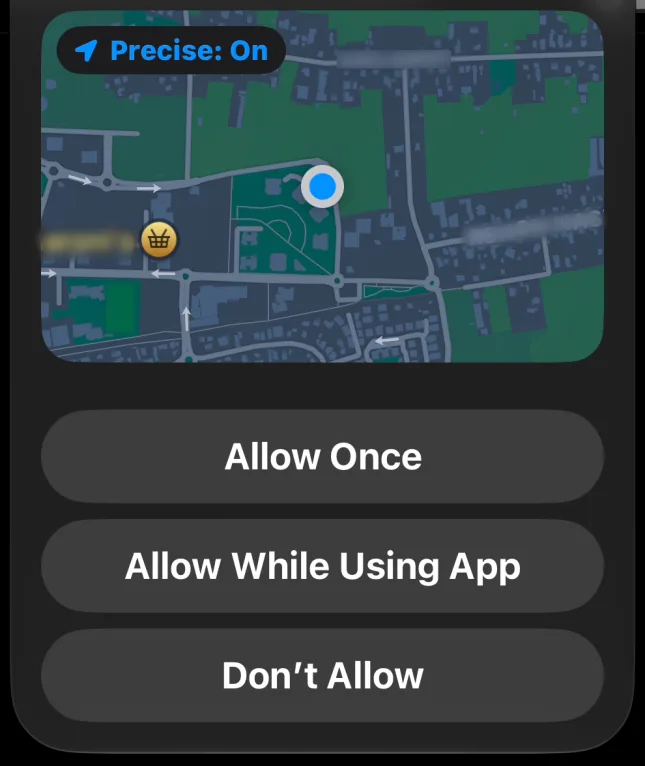
  • Location: without it, PaceIQ cannot measure your pace from GPS or check the weather where you are. On the iPhone, choose Allow While Using App and keep Precise on; without a precise location, GPS cannot measure your pace.
iOS Health Access sheet at the first iPhone workout: Allow PaceIQ to access your Health data?
Health
iOS request: Allow PaceIQ to access your motion and fitness activity? Don't Allow or Allow
Motion & Fitness
iOS location request with Precise: On and the buttons Allow Once, Allow While Using App and Don't Allow
Location: Allow While Using App, Precise on

Choose your units

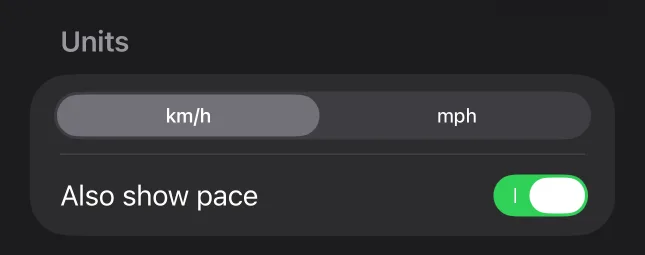
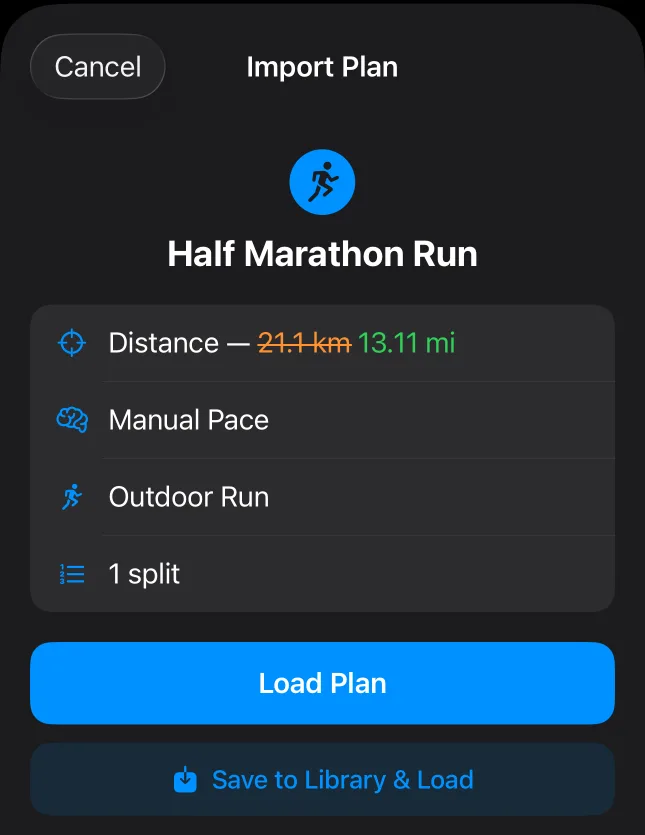
In Settings, under Units, choose km/h or mph. Plans shared in the other unit are converted automatically, and the original goal is shown next to the converted one.

PaceIQ Settings, Units: km/h or mph, and Also show pace
Settings, Units
Import Plan preview on an iPhone set to miles: distance 21.1 km struck through in orange, 13.11 mi in green
A kilometre plan opened on a miles phone

Get told when a new workout is ready

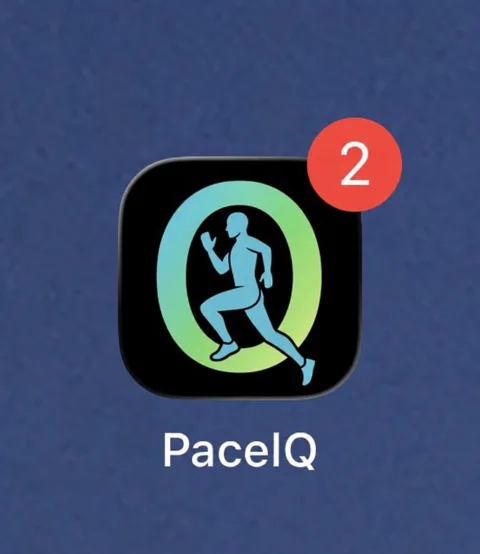
In Settings, under Notifications, turn on Notify after each workout. The number on the PaceIQ app icon then shows how many new workouts you have not looked at yet. Opening the Last Workout screen clears the newest one. If more than one is waiting, open the others from History to clear them.

The PaceIQ app icon on the Home Screen with a red badge showing 2
Two new workouts waiting

Set your default workout type

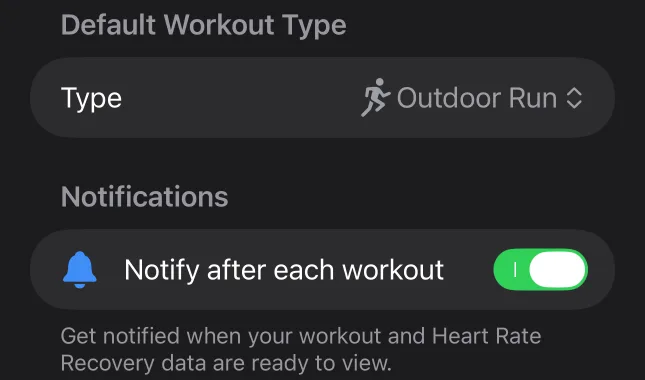
The Default Workout Type in Settings decides which type the Calculator and IQ Plan select for you when they open. You can still change the type for any single workout on those screens.

PaceIQ Settings: Default Workout Type set to Outdoor Run, and Notify after each workout switched on
Default Workout Type and Notifications

2Getting accurate pace

Give the coach half a kilometre

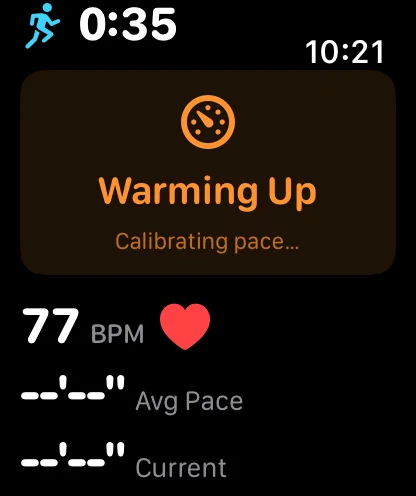
It takes PaceIQ about half a kilometre, sometimes more, before its pace reading settles and its guidance becomes reliable. PaceIQ also learns your personal stride length and keeps it for your next workouts, so give it a chance to get better over time.

Apple Watch at the start of a workout: Warming Up, Calibrating pace
The first minutes: calibrating

GPS and the step counter work together

PaceIQ combines GPS with the device's built-in step counter to keep your pace reading steady and to avoid false alerts as far as possible. Sometimes, mostly between tall buildings, under bridges or in tunnels, the GPS reading is wrong or missing, and PaceIQ has to rely on the step counter alone, which is less accurate. Help it count your steps reliably:

  • iPhone: in a pocket or a snug armband or belt, close to your body.
  • Apple Watch: let the arm with the Watch swing naturally with your steps. Don't keep that arm still for long stretches.

Don't hold the iPhone in your hand

When you train with the iPhone alone, don't hold it in your hand. The quick movements of your arm disturb the iPhone's GPS and can lead to wrong guidance.

Stopping at a crossing is fine

If you come to a full stop for about five seconds, at traffic lights, a crossing or any other obstacle, the coach recognises the stop and will not tell you to speed up. Once you move again, it takes a short moment to settle before it judges your pace again.

Too many or too few pace cues?

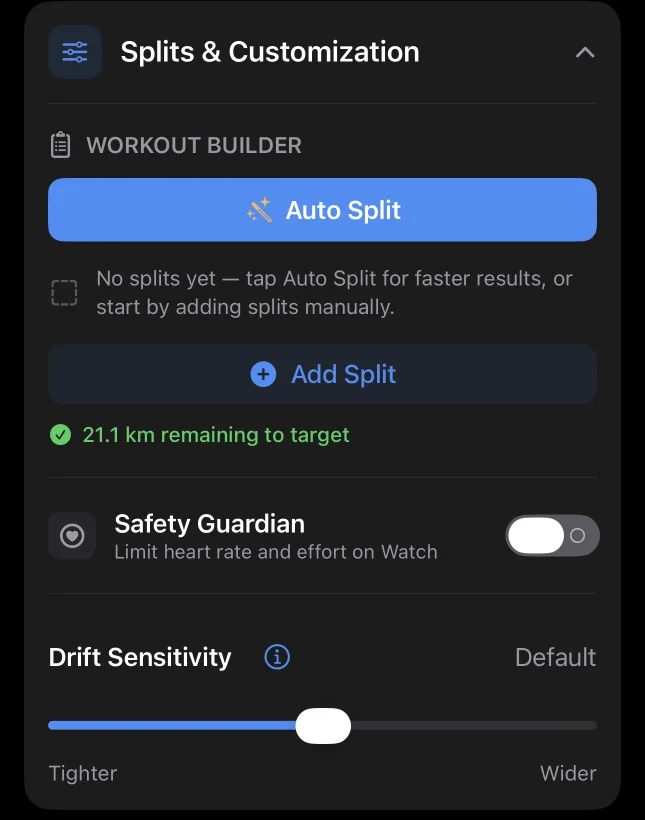
In IQ Plan, open Splits & Customization and adjust Drift Sensitivity. Wider gives you more room before a pace alert; Tighter alerts you sooner.

IQ Plan, Splits and Customization: the Drift Sensitivity slider between Tighter and Wider
Drift Sensitivity in IQ Plan

3Heart rate

With an Apple Watch

Wear the Watch snug on your wrist, not loose, so the heart-rate sensor gets a good reading. For denser, more reliable heart-rate data, pair a standard heart-rate chest strap with your Watch.

With the iPhone alone

The iPhone has no heart-rate sensor of its own. For the full analysis after your workout, pair a Bluetooth heart-rate sensor: a chest strap, an arm band, or a sports watch that supports the standard Bluetooth heart-rate profile. Your iPhone picks it up automatically, with no extra app and no setup in PaceIQ.

4During the workout

The Apple Watch screens

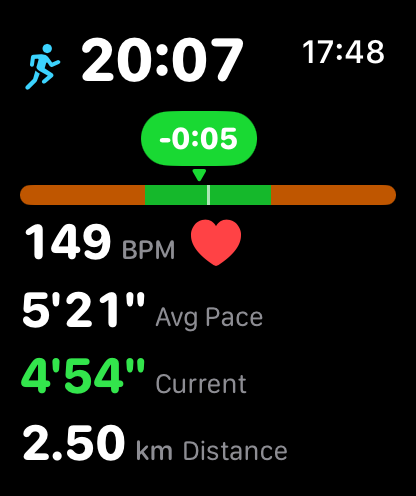
The main screen shows your live workout data.

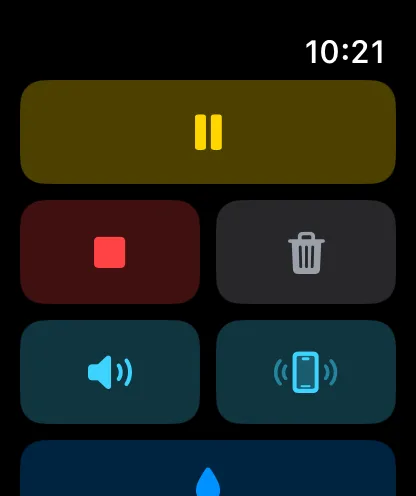
  • Swipe right to reach the controls: pause and resume, end the workout, discard the workout, voice guidance on or off, vibration on or off, and Water Lock.
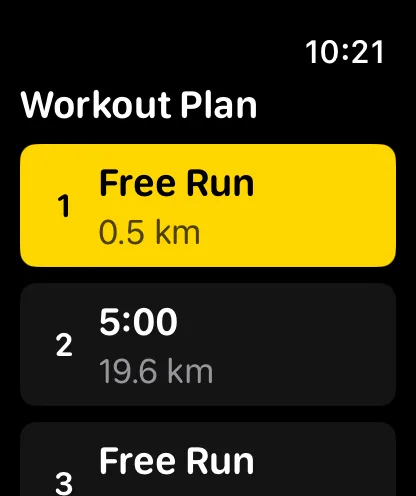
  • Swipe left to see your workout plan: every split of the plan is listed, and the one you are in now is highlighted.
Apple Watch controls: pause, end, discard, voice, vibration and Water Lock
Swipe right: controls
Apple Watch main workout screen: pace window, heart rate, average pace, current pace and distance
Main screen
Apple Watch Workout Plan page with the current split highlighted in yellow
Swipe left: your plan
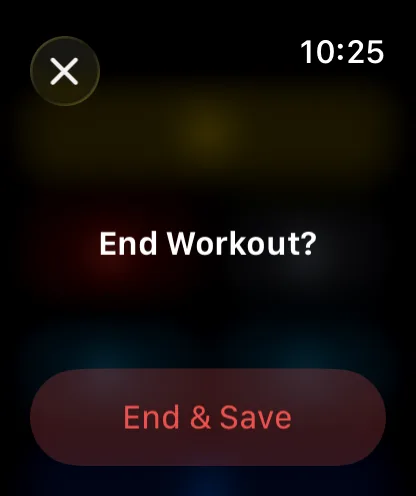
Apple Watch confirmation: End Workout? End and Save
End asks before it saves

The Lock Screen card on the iPhone

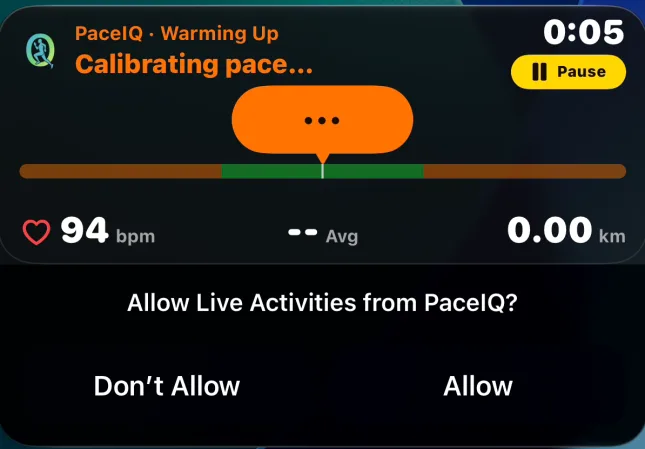
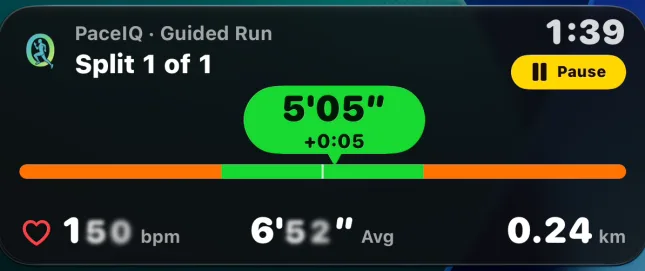
When you train with the iPhone alone, a Live Activity card on the Lock Screen shows your workout, so you don't need to open the app. You can pause and resume the workout from the card itself. The first time the card appears, iOS shows "Allow Live Activities from PaceIQ?" beneath it. Tap Allow so the card can appear in your next workouts too.

Lock Screen card while warming up, with the iOS question Allow Live Activities from PaceIQ? Don't Allow or Allow
First time: tap Allow
Lock Screen card during a guided run: split 1 of 1, current pace in the pace window, heart rate, average pace, distance and a Pause button
During the workout, with Pause

Keep your heart rate off the Lock Screen

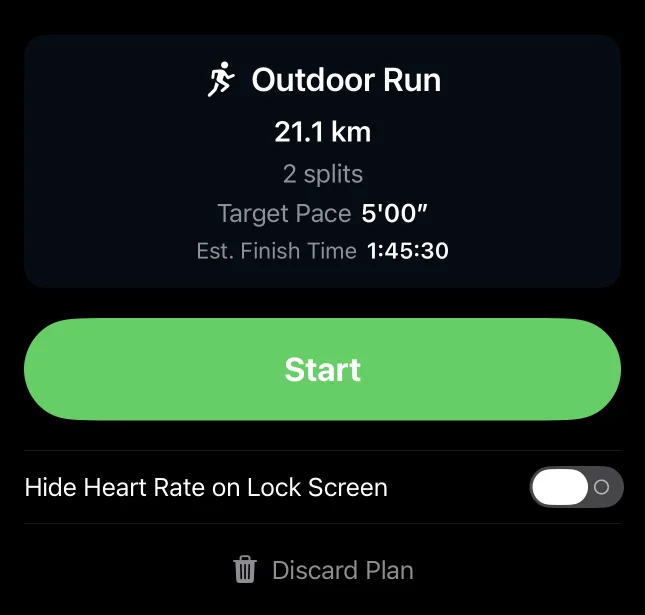
If you prefer that people around you don't see your heart rate, turn on Hide Heart Rate on Lock Screen on the iPhone's ready screen before you start.

iPhone ready screen: plan summary, Start button, Hide Heart Rate on Lock Screen switch and Discard Plan
The iPhone's ready screen

A free workout, no planning needed

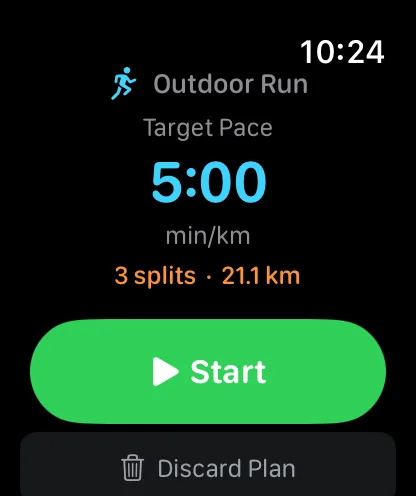
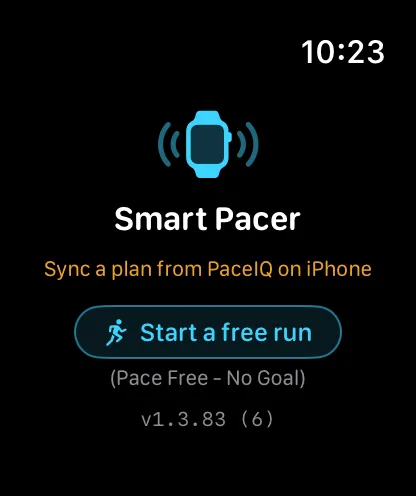
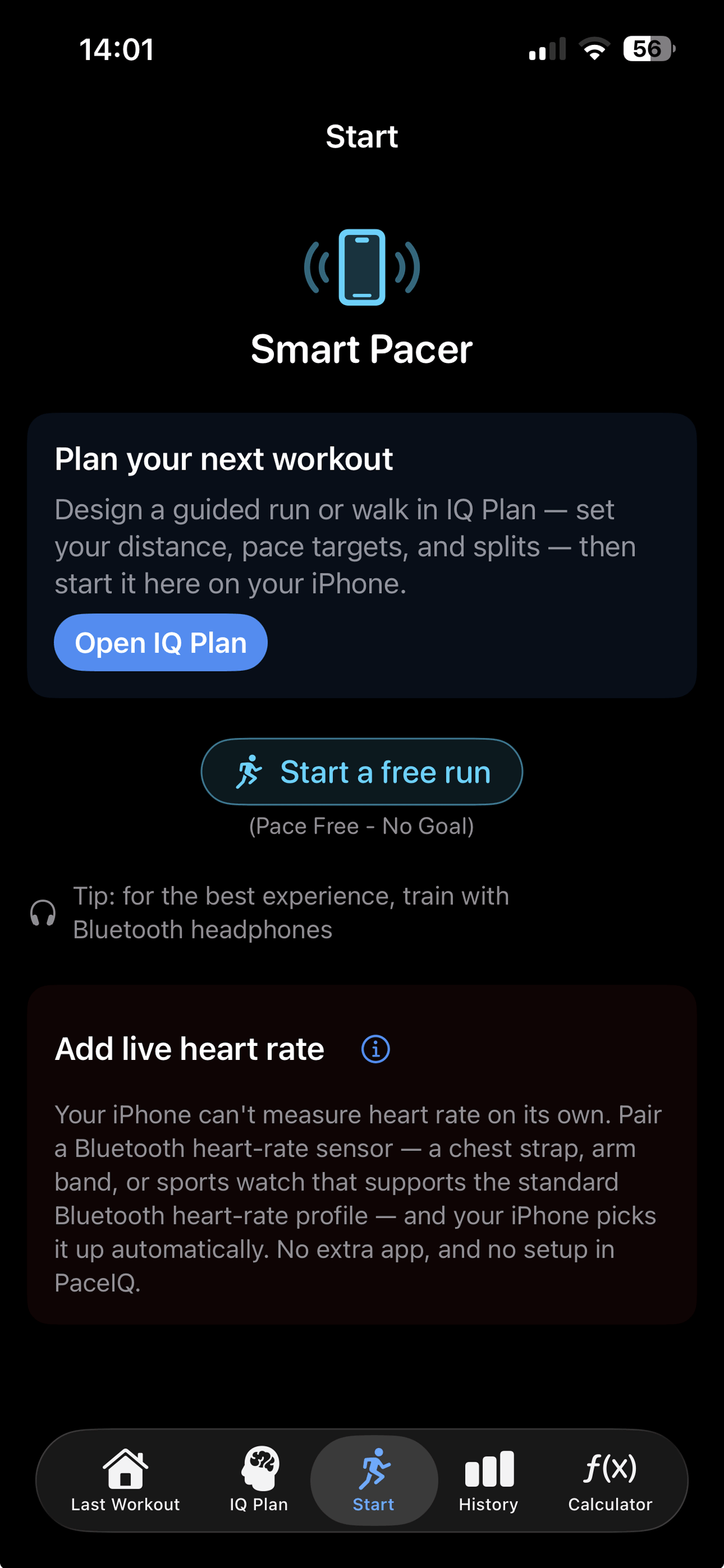
On both the Apple Watch and the iPhone you can start a free workout with no pace guidance and no goal. If a plan is already loaded and you want to head out right away, tap Discard Plan, then tap Start a free run.

A free workout started this way is always saved as an outdoor run, even if you walk it. The only differences from a walk are that a run gets the running-style analysis and the workout is labelled as a run in PaceIQ and in the Health app. Everything else is exactly the same.

Apple Watch with a plan loaded: Start and Discard Plan
1. Discard Plan
Apple Watch with no plan: Smart Pacer and Start a free run
2. Start a free run
iPhone Start tab with Start a free run
On the iPhone: Start tab

5Voice and languages

Good headphones make a difference

Use headphones that stay in place for the whole workout. Clear sound makes guided training much better.

17 languages, on the iPhone and the Watch

  • iPhone: spoken guidance follows the language you chose in PaceIQ's Settings.
  • Apple Watch: spoken guidance always follows the Watch's own system language.

Get the best voice

PaceIQ speaks through Apple's built-in text-to-speech. For every cue it asks for the best voice installed for your language: a Premium voice first, then an Enhanced voice, and only if neither is installed, the standard voice. So download a Premium or Enhanced voice for your language, on each device you train with:

  • iPhone: Settings, then Accessibility, then Spoken Content, then Voices. Choose your language and download a Premium or Enhanced voice.
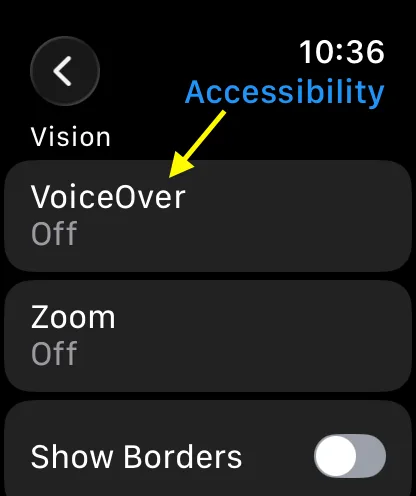
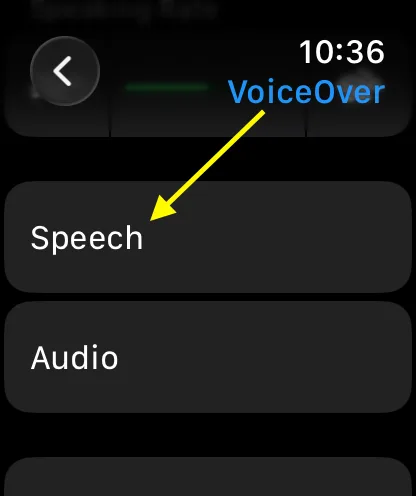
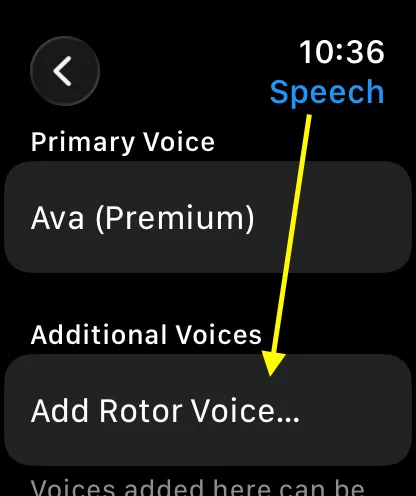
  • Apple Watch: on the Watch, Settings, then Accessibility, then VoiceOver, then Speech, then Add Rotor Voice…. Choose your language and download a Premium or Enhanced voice. You don't need to turn VoiceOver on. The download needs Wi-Fi and the Watch on its charger.

A voice worth trying for English: Ava (Premium), calm and pleasant to run with.

If you download more than one Premium or Enhanced voice for the same language, PaceIQ uses the first one it finds, so keep only the one you like best.

Apple Watch Settings, Accessibility, with an arrow to VoiceOver
1. Accessibility, VoiceOver
Apple Watch VoiceOver settings, with an arrow to Speech
2. Speech
Apple Watch Speech settings: Primary Voice Ava (Premium), with an arrow to Add Rotor Voice
3. Add Rotor Voice…

To be honest about two things that happen inside Apple's speech system, outside PaceIQ's control:

  • Every now and then, even within the same workout, the system speaks a cue in a lower-quality voice and the very next cue in the good one again.
  • In some languages other than English, the system voice sometimes misreads what a word means in the sentence, or pronounces a word in a way that does not sound natural. PaceIQ's text is a proper translation written for your language; the pronunciation comes from Apple's voice, and improving it is in Apple's hands.

Cues on the Apple Watch

Before every cue, the Watch plays about a second of silence to wake your Bluetooth headphones, so the first word is not cut off. Even so, a cue may occasionally be cut short or not heard at all.

Music and podcasts

If you listen to music, a podcast or anything similar, the volume is lowered while a cue plays and returns to its previous level as soon as the cue ends. If a cue ever stalls without being heard, PaceIQ automatically restores the volume within 20 seconds at most.

6After the workout

Stay with the app while it saves

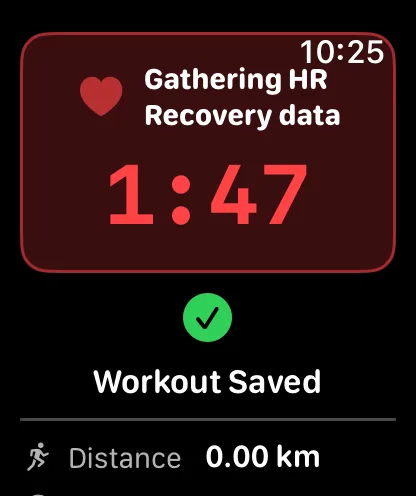
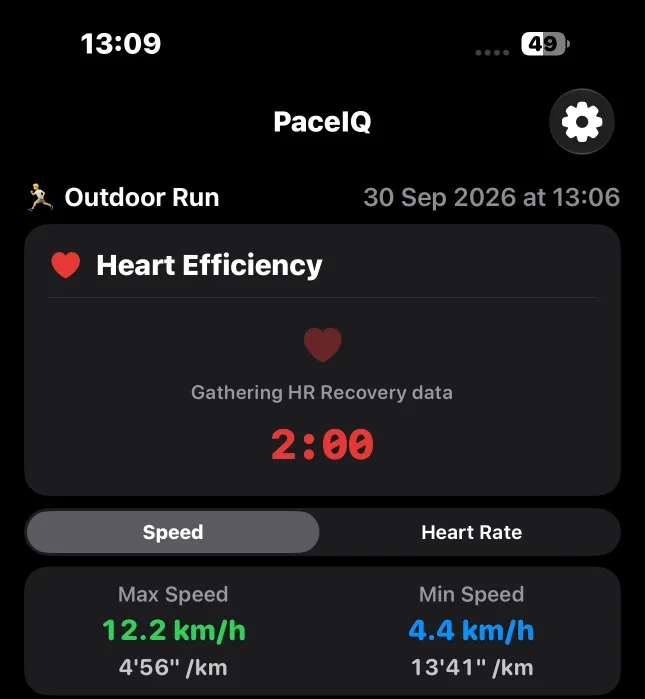
When you end a workout, keep PaceIQ open while it saves and during the countdown of about two minutes that follows. This makes sure every piece of workout data is saved, and it lets PaceIQ measure how quickly your heart rate recovers after you stop. You will see the result on the Last Workout screen and in your workout history.

Apple Watch after the workout: Gathering HR Recovery data, countdown 1:47, Workout Saved
On the Watch
iPhone Last Workout after the workout: Heart Efficiency card gathering HR Recovery data, countdown 2:00
On the iPhone

The Watch can go out without the iPhone

You can leave the iPhone at home: start a free workout on the Watch, or repeat the last plan you synced. When the Watch and the iPhone are together again, open PaceIQ on the iPhone to see the workout and its heart-rate recovery.

Ask Siri

Say "Show my last workout in PaceIQ" or "How was my week in PaceIQ".

7Saving and sharing plans

Save the plans you repeat

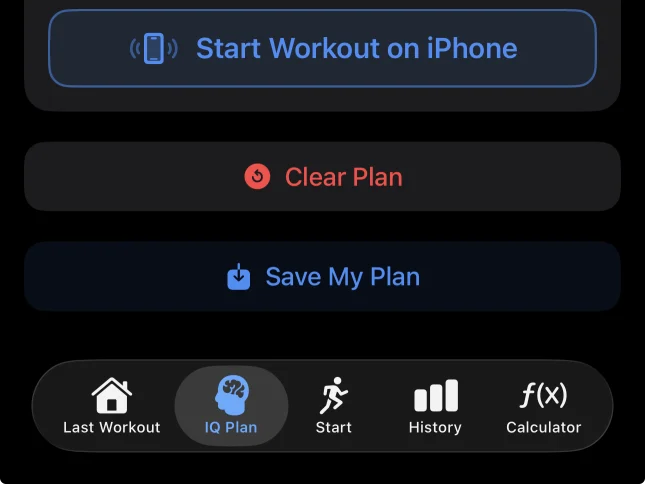
At the bottom of the IQ Plan tab, tap Save My Plan and give the plan a name. Your saved plans wait under My Saved Plans at the top of the tab: tap one to load it, change anything you like, and send it to the Watch.

The bottom of the IQ Plan tab: Start Workout on iPhone, Clear Plan and the Save My Plan button
Save My Plan, at the bottom of IQ Plan

Share a plan as a file

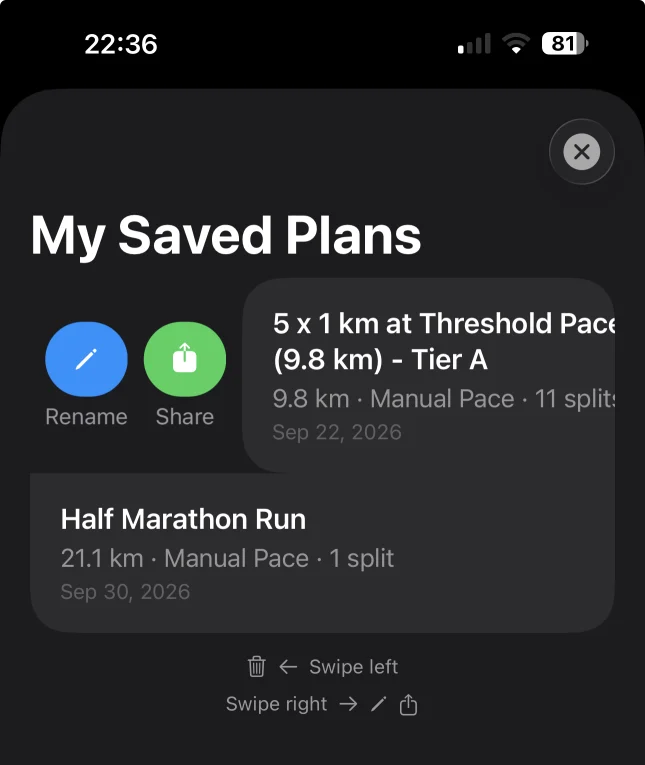
In My Saved Plans, swipe a plan to the right and tap Share. PaceIQ hands a small plan file to Mail, Messages, AirDrop or any other sharing app. The person who receives it opens the file with PaceIQ, sees the plan and its segments, and loads it or saves it to their own library.

Their copy is their own: they can change any pace or distance before they run, and nothing changes in yours. Building a plan and opening a plan file both need Elite.

My Saved Plans with one plan swiped to the right, showing the Rename and Share buttons
Swipe right for Rename and Share

For coaches, friends and running groups

A coach can build a precise session for each athlete and send the sessions for the week or two ahead. The athlete runs them with the coach's paces in their ear. Friends and running groups can do the same with one file in the group chat: everyone runs the same session, each with a private coach, in their own language and units.

An effort ceiling travels with the plan as an effort level, not as a heart rate. Each iPhone works out the heart rate for that level from its owner's own age and resting heart rate, so the same plan sets a personal limit for every runner.

Close the loop with the AI Analysis

After the workout, the athlete taps Copy AI Analysis on the AI Analyst card, on Last Workout or on any workout in History, pastes it into a message to the coach, and adds a few lines underneath about how the session felt.

The analysis sets every planned segment next to what was actually run in it, with pace, heart rate, recovery and conditions. The coach pastes the whole message into the AI assistant they already work with and gets a full picture of the session beside the athlete's own words. The next sessions can then be planned from it: a little harder, a little easier, or the same again.

The analysis includes the athlete's personal fitness profile, so who receives it is the athlete's choice. Copy AI Analysis needs Elite.